
Master-replica: automated failover
Example on GitHub: auto_leader
This tutorial shows how to configure and work with a replica set with automated failover.
Before starting this tutorial:
- Install the tt utility.
- Create a tt environment in the current directory by executing the tt init command.
- Inside the
instances.enableddirectory of the created tt environment, create theauto_leaderdirectory. - Inside
instances.enabled/auto_leader, create theinstances.ymlandconfig.yamlfiles:instances.ymlspecifies instances to run in the current environment and should look like this:
instance001:instance002:instance003:
- The `config.yaml` file is intended to store a[replica set configuration](#replication-automated-failover-configure-cluster).
This section describes how to configure a replica set in config.yaml.
First, set the
replication.failover
option to election:
replication:failover: election
Define a replica set topology inside the groups section. The iproto.listen option specifies an address used to listen for incoming requests and allows replicas to communicate with each other.
groups:group001:replicasets:replicaset001:instances:instance001:iproto:listen:- uri: '127.0.0.1:3301'instance002:iproto:listen:- uri: '127.0.0.1:3302'instance003:iproto:listen:- uri: '127.0.0.1:3303'
In the credentials section,
create the replicator user with the replication role:
credentials:users:replicator:password: 'topsecret'roles: [replication]
Set iproto.advertise.peer to advertise the current instance to other replica set members:
iproto:advertise:peer:login: replicator
The resulting replica set configuration should look as follows:
-
After configuring a replica set, execute the tt start command from the tt environment directory:
$ tt start auto_leader• Starting an instance [auto_leader:instance001]...• Starting an instance [auto_leader:instance002]...• Starting an instance [auto_leader:instance003]... -
Check that instances are in the
RUNNINGstatus using the tt status command:$ tt status auto_leaderINSTANCE STATUS PID MODE CONFIG BOX UPSTREAMauto_leader:instance001 RUNNING 9170 RO ready running --auto_leader:instance002 RUNNING 9171 RO ready running --auto_leader:instance003 RUNNING 9172 RW ready running --
-
Connect to
instance001using tt connect:$ tt connect auto_leader:instance001• Connecting to the instance...• Connected to auto_leader:instance001 -
Check the instance state in regard to leader election using box.info.election. The output below shows that
instance001is a follower whileinstance002is a replica set leader.auto_leader:instance001> box.info.election---- leader_idle: 0.77491499999815leader_name: instance002state: followervote: 0term: 2leader: 1... -
Check that
instance001is in read-only mode usingbox.info.ro:auto_leader:instance001> box.info.ro---- true... -
Execute
box.info.replicationto check a replica set status. Make sure thatupstream.statusanddownstream.statusarefollowforinstance002andinstance003.auto_leader:instance001> box.info.replication---- 1:id: 1uuid: 4cfa6e3c-625e-b027-00a7-29b2f2182f23lsn: 9upstream:status: followidle: 0.8257709999998peer: replicator@127.0.0.1:3302lag: 0.00012326240539551name: instance002downstream:status: followidle: 0.81174199999805vclock: {1: 9}lag: 02:id: 2uuid: 9bb111c2-3ff5-36a7-00f4-2b9a573ea660lsn: 0name: instance0013:id: 3uuid: 9a3a1b9b-8a18-baf6-00b3-a6e5e11fd8b6lsn: 0upstream:status: followidle: 0.83125499999733peer: replicator@127.0.0.1:3303lag: 0.00010204315185547name: instance003downstream:status: followidle: 0.83213399999659vclock: {1: 9}lag: 0...To see the diagrams that illustrate how the
upstreamanddownstreamconnections look, refer to Monitoring a replica set.
To check that replicas (instance001 and instance003) get all updates
from the master (instance002), follow the steps below:
-
Connect to
instance002usingtt connect:$ tt connect auto_leader:instance002• Connecting to the instance...• Connected to auto_leader:instance002 -
Create a space and add data as described in CRUD operation examples.
-
Use the
selectoperation oninstance001andinstance003to make sure data is replicated. -
Check that the
1component of box.info.vclock values are the same on all instances:-
instance001:auto_leader:instance001> box.info.vclock---- {0: 1, 1: 32}... -
instance002:auto_leader:instance002> box.info.vclock---- {0: 1, 1: 32}... -
instance003:auto_leader:instance003> box.info.vclock---- {0: 1, 1: 32}...
-
To test how automated failover works if the current master is stopped, follow the steps below:
-
Stop the current master instance (
instance002) using thett stopcommand:$ tt stop auto_leader:instance002• The Instance auto_leader:instance002 (PID = 24769) has been terminated. -
On
instance001, checkbox.info.election. In this example, a new replica set leader isinstance001.auto_leader:instance001> box.info.election---- leader_idle: 0leader_name: instance001state: leadervote: 2term: 3leader: 2... -
Check replication status using
box.info.replicationforinstance002:upstream.statusisdisconnected.downstream.statusisstopped.
auto_leader:instance001> box.info.replication---- 1:id: 1uuid: 4cfa6e3c-625e-b027-00a7-29b2f2182f23lsn: 32upstream:peer: replicator@127.0.0.1:3302lag: 0.00032305717468262status: disconnectedidle: 48.352504000002message: 'connect, called on fd 20, aka 127.0.0.1:62575: Connection refused'system_message: Connection refusedname: instance002downstream:status: stoppedmessage: 'unexpected EOF when reading from socket, called on fd 32, aka 127.0.0.1:3301,peer of 127.0.0.1:62204: Broken pipe'system_message: Broken pipe2:id: 2uuid: 9bb111c2-3ff5-36a7-00f4-2b9a573ea660lsn: 1name: instance0013:id: 3uuid: 9a3a1b9b-8a18-baf6-00b3-a6e5e11fd8b6lsn: 0upstream:status: followidle: 0.18620999999985peer: replicator@127.0.0.1:3303lag: 0.00012516975402832name: instance003downstream:status: followidle: 0.19718099999955vclock: {2: 1, 1: 32}lag: 0.00051403045654297...The diagram below illustrates how the
upstreamanddownstreamconnections look like: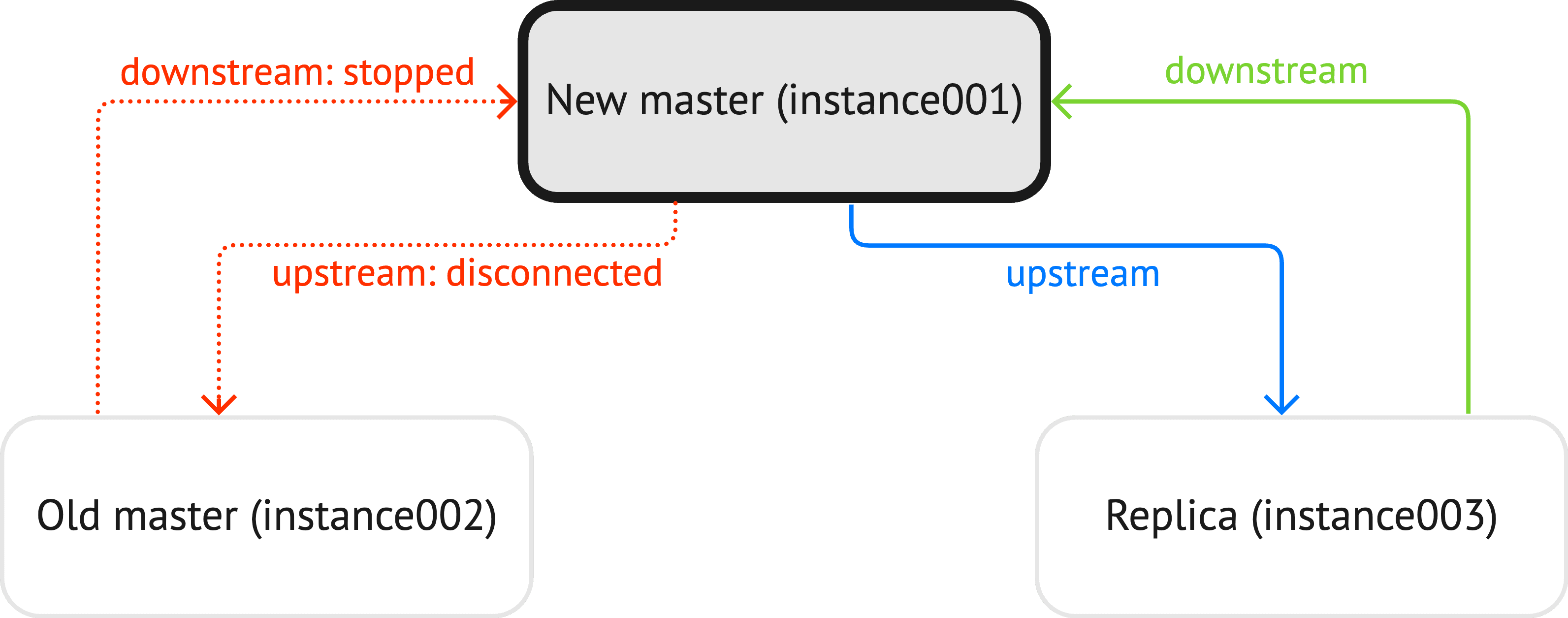
-
Start
instance002back usingtt start:$ tt start auto_leader:instance002• Starting an instance [auto_leader:instance002]...
-
Make sure that box.info.vclock values (except the
0components) are the same on all instances:-
instance001:auto_leader:instance001> box.info.vclock---- {0: 2, 1: 32, 2: 1}... -
instance002:auto_leader:instance002> box.info.vclock---- {0: 2, 1: 32, 2: 1}... -
instance003:auto_leader:instance003> box.info.vclock---- {0: 3, 1: 32, 2: 1}...
-
-
On
instance002, run box.ctl.promote() to choose it as a new replica set leader:auto_leader:instance002> box.ctl.promote()---... -
Check
box.info.electionto make sureinstance002is a leader now:auto_leader:instance002> box.info.election---- leader_idle: 0leader_name: instance002state: leadervote: 1term: 4leader: 1...
The process of adding instances to a replica set and removing them is similar for all failover modes. Learn how to do this from the Master-replica: manual failover tutorial:
Before removing an instance from a replica set with
replication.failover set
to election, make sure this instance is in read-only mode. If the
instance is a master, choose a
new leader manually.